
Insights Website
HTML Heading Tags 101: How to use them properly (and why it matters)

This post was originally published June 24, 2025. It has since been updated to provide a more in-depth definition of heading tags.
Heading tags are an important part of creating content that is usable, accessible and optimized for search engines. However, I still find that people don’t know how to use them properly.
In this article, I’m going to teach you the basics of how to properly use heading tags: what are the rules, what do they affect and what are common mistakes to avoid.
My goal is to help you publish content that is properly formatted so your readers, search engines and screen readers can more easily hear what you have to say.
What are heading tags?
Heading tags are HTML semantic elements that are used to introduce the content that follows. They are important, foundational tools to help with accessibility, usability, SEO, readability and more.
Heading tags provide hierarchy to your content (like a nested bulleted list—I’ll expand this shortly). There are six levels of heading tags (H1, H2, H3, H4, H5, H6) though H5 and H6 are rarely required.
Here are a few other terms that are often mistakenly used interchangeably with ‘heading’.
Heading tag vs Title tag
Pages have title tags that are different from headings.
A title tag is the title that shows up on search engine results pages (SERPs). Your page also has an on-page title. This is your H1.
That on-page title may also appear on another page, (say a card linking to your blog post) where it could show up as an H2 or H3. The point is that your page title is separate from your headings.
Heading tag vs Subtitle
Web pages don’t need subtitles. I want to say this is a darling from the publishing industry sneaking into our digital lingo, but books don’t really need subtitles either. A heading tag is not a subtitle.
Heading tag vs Subhead (or subheading)
A subhead could be used interchangeably with the H2s to H6s on your page. So if you’re referring to every heading that excludes your H1, subhead or subheading would be an accurate term.
Heading tag vs Header
In print, headers appear at the top of your printed page. They often include the name of the book, the author and the page you’re on.
Heading tag vs Head
The head of the page is where important code goes (like your page title, Google Analytics snippets, etc.)
There are a lot of terms that are either similar or that serve similar purposes as headings, but in this article, we are focusing on the HTML semantic element.
What are the benefits of HTML Heading Tags?
Proper heading tags help with:
- Writing: heading tags organize and structure content and should reflect your content outline
- Design: heading tags make a page more breathable
- User experience (UX): heading tags help users navigate content more easily
- Search engine optimization (SEO): heading tags help search engines better understand and rank content
- Accessibility: heading tags help users with assistive technology navigate content with less friction
But maybe the best way to communicate the benefit of heading tags is through an example.
So imagine you visit a page that looks like this.

It feels like a scientific paper, doesn’t it? Like if you read it, you’ll get an award or be eligible as a PhD candidate. It’s not accessible, it’s not welcoming. It’s intimidating.
What if instead it looked like this?

It’s the exact same content but now it breathes, it’s easy for you to scan and it helps make sense of what you’re about to read, which makes it easier to absorb.
Heading tags and hierarchy
As I mentioned earlier, heading tags don’t just make things pretty: they add a layer of meaning by showing relationships between sections.
One of the ways I like to illustrate this is to imagine we’re going to write a page about pets. So the outline for this page could look something like this:
- Pets
- Dogs
- Golden retriever
- French bulldog
- Poodle
- Cats
- British shorthair
- Burmese
- Chartreux
- Dogs
Within pets, we have two kinds of animals: dogs and cats. And under each animal, there are three breeds. By formatting our outline using nested bullet points, we are visually showing the structure of our content between these concepts (dogs and cats are a kind of pet, Golden retrievers, bulldogs and poodles are a kind of dog, etc.)
That’s a lot of complexity that we’re able to communicate very quickly.
Heading tags work in the exact same way as a nested bulleted list: they communicate this hierarchy and structure. So in this page about pets, Pets will be our H1, our animals (dogs and cats) will be our H2s and the breeds under each animal will be our H3s.
Rules of HTML Heading Tags
There are six important rules for content publishers when it comes to heading tags.
- There are 6 levels of HTML heading tags.
- Every page must have one and only one, H1.
- The H1 should be the very first element in your page’s main content.
- Your H1 should identify and describe the main content of the page.
- Heading tags must be used sequentially (no H3s before H2s, etc.).
- Subheadings should identify and describe the content of the section they introduce.
Let’s take a look at each individually.
Rule 1: There are 6 kinds of HTML heading tags.

As we can see from the image, size does kind of matter. And of course it does! It is how sighted users identify hierarchy after all. But this size doesn’t have to be consistent across your entire website.
The H1 on your page for example might be bigger than the one on your article page.
Rule 2: Every page must have one and only one H1.

Now if your on-page title isn’t an H1, that is frequently an issue a developer has to fix. Similarly, if other elements outside of your page’s content are H1s (I frequently see “Subscribe to Newsletter” or even the name of the organization in the footer as an H1), you’ll need a developer’s help.
Usually you can control the heading tags within the body of your content and there you should make sure you don’t assign additional H1s.
Rule 3: The H1 should be the very first element in your page’s main content.
These are often choices that happen in design or sometimes in the way a page is developed but the first element in your page’s main content should be the page title, not an image, not breadcrumbs, not eyebrow text…
Good web practices state that you start your page with the on-page title, which is your H1.
Rule 4: H1 should identify and describe the main content of the page.

This should go without saying but it does need to be said. The function of a heading tag is to describe to a user the content they’re about to consume.
The reason heading tags help with SEO is because they provide rich opportunities for keywords that you want to rank for. So if you want your page to show up for relevant searches, searches it provides answers to, you want to use the real estate of your H1 to include the topic the page is going to be about.
As opposed to writing a headline that is coy, vague, mysterious, or artsy.
Rule 5: Heading tags must be used sequentially (no H3s before H2s, etc.)

This is the way heading tags should be used: your page starts with an H1, then the two main sections of the page are introduced with H2s.

As you add subpoints within a section, that’s when you move on to the next heading level. So in this case, the first H2 has two H3s within it, the second H2 has one.
You rarely will need to use anything past H3. If you’re using an H5 or H6, there’s likely an issue with the structure.
Rule 6: Subheadings should identify and describe the content of the section they introduce.
Just like your H1 should describe the content you’re covering on your page, your subheads should describe the content they’re about.
Common mistakes with heading tags
It’s probably easiest to understand how to best use heading tags by looking at the frequent mistakes I’ve come across over the years.
- Mistake 1: Using heading tags for visual effect
- Mistake 2: Writing long, wordy headings
- Mistake 3: Using heading tags “sequentially”
- Mistake 4: Using heading tags out of order
Like we did with the rules, let’s take a look at these in a little more depth.
Mistake 1: Using heading tags for visual effect

You’re writing your blog post and you’ve got this statement that you think is going to change the world if everyone could just read it. What do you do? Make it an H1, nice and big.
Don’t do that! A heading tag is not an aesthetic choice.
Mistake 2: Writing long, wordy headings
This is a bit of a variation of the first mistake. Sometimes you are using the right heading level in the right place to introduce the next section. The problem? You’re writing a paragraph.
Your heading is there to quickly summarize and describe what someone is about to read. You’re removing friction – a reader should be able to see your heading at a glance and quickly process it.
Mistake 3: Using heading tags “sequentially”

Maybe you understand that an H1 goes first, then an H2…but every time you go down the page and seeing a heading, you’re assigning it the next level. In the image above, what we’re communicating is that ‘Recent work’ is a subset of ‘Who we are’. Think back to the concept of nested bulleted lists:
- Pets
- Dogs
- Cats
- Rabbits
- Cats
- Dogs
If Pets is an H1, Dogs is an H2, Cats should not be an H3 because it’s not a subset of Dogs.
Mistake 4: Using heading tags out of order
This is the most frequent mistake, and the culprit is usually (but not always) a little bit of mistake 1.
Oftentimes, I’ll see an H1 as the on-page title, which is great, but the next heading is an H3. Usually the reason is because the publisher wants to communicate that this is a smaller section than the main subsection which they’re about to introduce with an H2.

We also see this issue in the example above with the dreaded eyebrows. Eyebrows are mini headings above a heading and they’re a bit of a nightmare to code properly.
Usually they exist so you can be extra long and verbose with your heading (see mistake 2), but still properly summarize what the content is going to be about.
How to check your heading tags
Now that you know how to properly use heading tags, how do you easily check them? If you’re the content publisher, you can see which heading tag you have assigned on the backend (check out our guide to publishing content on WordPress).
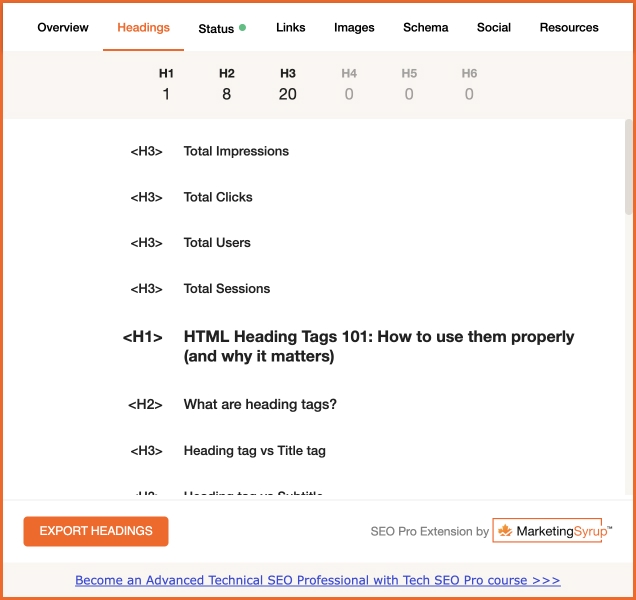
Otherwise, you can right click on your headings, and click Inspect which will pop open a sidebar with the code and there you can see which heading you have been. But the easiest is to use a browser extension that will tell you a little quicker. My favourite one is the SEO Pro Extension. I find it useful to checking all of a page’s SEO elements, from title tag and meta description to the heading tags. Just click on the Headings tab and there you’ll quickly see all the headings on your page in order.
Heading Tags Checklist
Next time you’re doing a content audit, give your heading tags some love. We’ve got a free, downloadable PDF checklist you can take back to your team (so you can be the expert in the room).